Page 20: Drawing Curves
Spring 2026 Sample Solution
On this page, we’ll consider how we actually program curves in practice.
Discretizing Curves
If we draw a parametric curve , the obvious thing to do is to pick a set of values, find the corresponding positions , and plot those points. The simplest way to do this is to choose a number of points ahead of time, and make equally spaced values.
This approach has problems. If you pick too many values, it is wasteful: they will all end up in the same place (because ultimately, we have finite-sized pixels). If you pick too few values, you will get gaps between the points. Worse, if the curve varies in how fast it changes (it isn’t arc-length parameterized), there may be regions where the points are too dense and others where they are too sparse.
Things look slightly better if you connect the dots with lines - no more gaps. However, if you have too few points, your curve won’t look smooth, and if you have too many points, it is still wasteful.
In this box, we want you to try out the idea of changing the number of points. We want you to draw a spiral that circles around the origin 4 times, expanding outward. Here’s the function to use:
If you let go in the range from 0 to 1, this will make a spiral that fits nicely into the 400x400 canvas in 03-20-01.js and 03-20-01.html.
Drawing the spiral is relatively easy, but we want you to add 2 features to make it more interesting.
- First, add a checkbox on the page (03-20-01.html) that switches between drawing dots for each point and connecting the dots with lines.
- Second, add a slider that controls the number of points to be drawn. Make sure the slider has a range that goes from too few points (so you can see the spiral, but it looks jagged) to enough points that it looks smooth the whole way around.
view - look at the box and experiment with it
examine - look at the code for the box
edit - change the box's content
rubric - several steps are suggested in the rubric page - form elements on page in rubric
03-20-01.html 03-20-01.js
| Kind
Kind of rubric items: standard - expected from all students advanced - used to get a better grade creative - an opportunity to do something creative levels - rubric item graded by selected achievement level optional - not required, but encouraged |
Description | |
| standard | draw the spiral | |
| standard | checkbox and slider controls | |
| optional | approximate spiral with Beziers, have a switch for lines/Beziers |
One of the goals here is to make sure you can write programs that use sliders and checkboxes to control your graphics.
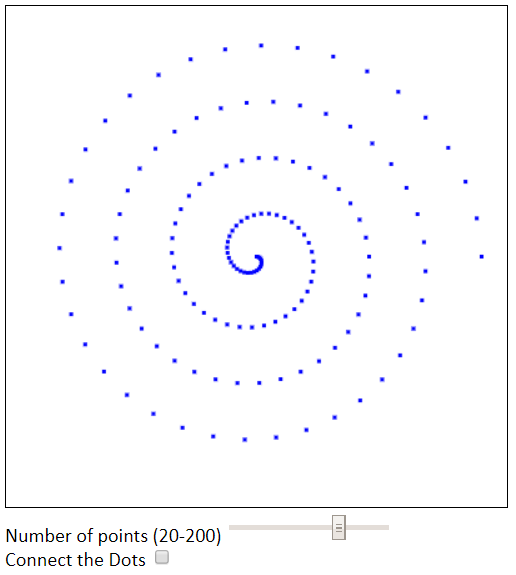
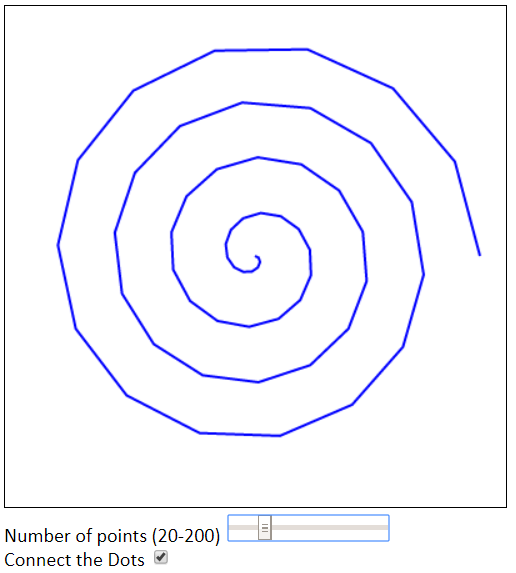
If you’re curious, here’s what my example solution looks like:
Hints:
- To see if a checkbox is checked, access its
checkedproperty (not itsvalue). - You will want to call your draw function when either the checkbox or the slider changes (use
onChange). - You can add the slider and checkbox elements in the HTML file.
In this simple example (in fact, you can just look at the pictures of mine), you can see how the number of points you need varies over the length of the spiral. The fixed steps are OK near the center, but less effective as you get farther outside.
If you look in the libs\CS559 directory, you will see a file called inputHelpers.js - this has utility functions that can help you make sliders and checkboxes. You do not need to use these utilities (in fact, we don’t recommend them). If you want to figure out how to use them, go ahead. They are there for future workbooks.
Better drawing
Fancier drawing algorithms adjust the spacing of the samples as they draw.
For certain curve types (including lines, circles, and cubic Bezier curves), correct drawing algorithms compute an exact value for every pixel - you always get exactly the right number of dots. We won’t show you these algorithms, but you can trust that the web browser does this correctly when it draws with the canvas or SVG drawing commands. For this reason, we often prefer to let Canvas (or SVG) draw Beziers (or circles or lines) for us when we want smooth curves. Indeed, if we have a curve that is not one of these other types, the best strategy is often to convert it to one of the kinds of curves that the underlying library can draw correctly.
If the curve is not something that Canvas knows how to draw, we need to break it into pieces and convert the pieces to things Canvas can draw. For example, in the previous example, we approximated the spiral by a set of line segments. If we wanted a smoother result, we could have approximated the spiral with a set of Bezier segments. This can be tricky: we must not only compute the spiral’s derivatives (to figure out the tangent direction), but scale them accordingly (since the spiral is divided up among a number of Bezier segments).
If the curve is something that is easy to convert to cubic Bezier form (for example, a different kind of cubic segment), then using canvas Bezier drawing commands is a good idea.
Part of 2023 Lecture 11 | Slides
For something like a spiral, dividing the curve into Bezier segments is still just an approximation to the original curve. It might be a nicer approximation (since we won’t have the jagged edges we see with line segments), but it is still an approximation.
There is a tradeoff: we can make a nice approximation of a complicated curve by dividing it into very small pieces and using simple pieces (line segments). If we use nicer pieces (like Beziers), we might need fewer pieces, but computing them may be more expensive.
Optional: actually trying to draw the spiral as Bezier segments (so the approximation is C(1)) is tricky, because it requires thinking about the derivatives of each segment and how they relate to the whole curve. It isn’t worth doing, so it is an optional exercise.
Try making the spiral with Bezier segments, rather than line segments. You can use the Canvas bezierCurveTo command. Figuring out the derivatives of the spiral is easy - it’s just calculus like you did on page 1 of the workbook. The harder problem is to convert these derivatives from being with respect to the parameter of the spiral to being with respect to the Bezier curve segment. Hint: with the spiral, goes between 0 and 1, with each Bezier segment it also goes between 0 and 1. The Canvas bezierCurveTo command is discussed below.
Note: if you implement the optional Bezier segments, you must have a checkbox that allows the user to switch between line segments and Beziers. If things work correctly, the spiral should look smoother when you use the curve segments.
Next: Page 21 - Curve review