Page 15: Lights
Spring 2026 Sample Solution
This page does have an exercise at the bottom.
Local Lighting Model Lights
In the local lighting model (last page), at each point we need to consider the contribution of each light source. In standard computer graphics models, lights are simple: they have geometry and color/intensity.
There are three basic kinds of lights for simple lighting:
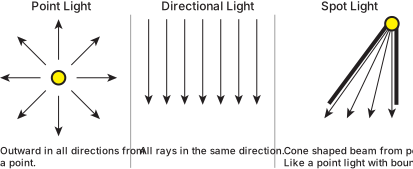
- A point light is like a light bulb. It sends rays in all directions. The rays all start at the same place, which makes it possible to measure distances.
- A directional light is light that all comes from the same direction. It is used to mimic a light source that comes from far away (like sunlight).
- A spot light is like a point light, except that it has bounds on the range of directions that the light travels in. Often, the boundaries are defined by a direction ray, and are measured as an angle from that. This leads to a cone (circular base).
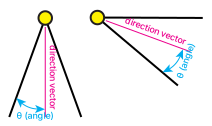
The direction that the light comes from (relative to the surface that it hits) will be an important aspect of how much of the light the surface reflects. The point and distant lights create differences in these directions. Spotlights act like point lights, except that they cut off in some directions.
The Ambient Lighting Hack
In the real world, much of the light in most scenes doesn’t come directly from the light source. It comes indirectly from bouncing off other objects. We don’t have that in the simple graphics lighting models.
This means that with simple lighting models, the parts of objects that don’t directly face a light source are dark. This can be problematic if you don’t define enough lights in enough different directions.
To make lighting easier, computer graphics has a standard hack: I call it a hack since it is non-physical, and has no justification except that it works reasonably well in practice. ambient lighting.
The idea of ambient lighting is that there is some light everywhere, in all directions. Effectively, it makes all objects “glow” a little bit, as if they are evenly lit from all sides.
Because ambient lighting is not realistic, it is usually omitted in lighting models that try to model the real world.
Adding Lights in three.js
In three.js, light sources are regular objects. They can be created, placed in scenes, transformed, connected to a parent, etc. Typically, they have no geometry (so you cannot see them in the scene). However, if they are in the scene, three will extract information from the lights and use it while it processes the “regular” objects.
The kinds of lights we will use in THREE (for now):
- AmbientLight - is a weird magic light that basically makes objects glow. It adds a uniform brightness to all objects - no matter what direction they are facing. Warning: ambient lighting does not affect the fancier (more realistic) materials.
- PointLight - sends rays of light out in all directions from a particular point. It’s like a light bulb. It needs to be positioned in the world.
- SpotLight - A spotlight is like a point light, but it only sends light in certain directions. It needs to be both positioned and oriented like a camera.
- DirectionalLight - creates rays of light coming from the same direction. This is useful to simulate sunlight (light coming from above), or other cases where we have big light sources that are far away.
With all lights, we can set a color and an intensity. Different kinds of lights have different parameters (like falling off with distance).
Also, while lights are in the Scene, we don’t see them - even if we look at them. If you want the lights to be visible, you need to create a “helper” object that shows up as a shape to show where the light is.
Here’s an example in 04-15-01.js (04-15-01.html): try changing the lights, or removing a light (by commenting out the line that adds it to the scene) to see the effects of different lights. The objects are moving so you can see the effects of light as things change. This scene does have the orbit controls.
view - look at the box and experiment with it
examine - look at the code for the box
edit - change the box's content
rubric - several steps are suggested in the rubric page - form elements on page in rubric
04-15-01.html 04-15-01.js
This scene has a spotlight from above, a yellow directional light from the side, and a point light that is above and to the side.
Here is the code that makes the lights:
|
|
The ambient line (line 21) is simple. We make an object and add it to the scene. Notice that it has a color (white) and an intensity (.2). We don’t want it to be very bright.
The point light (line 24-26) is also created as an object. It takes a few parameters that control the light that comes from it.
- color (white) — The light’s color.
- intensity (1.0) — The light’s strength.
- distance (0) — Maximum range of the light. 0 means no limit.
- decay — The amount the light dims along the distance of the light.
Because the point light has a position, it makes sense to make use of the distance to the light source. This allows us to limit the effects of the light (using distance), and have the light get weaker (fall off) as we get farther away (decay). Often, I find these effects hard to use, so I turn them off.
The point light shines from the center of its coordinate system. In order to place it, we use its transformation to move it to the appropriate place.
The spotlight is similar to the point light, except it needs a few extra parameters. We need to specify the cone angle ( or 12 degrees from the center). We can also specify how hard the falloff is at the edge.
The tricky part with a spotlight is aiming it in the right direction. Spotlights define their direction from their source point to some other object that defines its target point. We’ll look at that in the next example. For now, we use the default: unless you specify otherwise, spotlights point at the origin.
Note that we don’t get shadows unless we explicitly turn them on (which requires several steps). For this assignment, we won’t use shadows. Light passes through objects (as well as lighting them up).
Aiming Spotlights
Spotlights aim from their source point (the center of their coordinate system, which is their position) to a target. The target is some other object that the spotlight points at. The spotlight points towards the center of the target’s coordinate system.
The target must be some object, and the object must be in the scene. To make things easier, the spotlight creates a “target object” that you can use. However, it is not (by default) added to the scene - you have to do that yourself. Here’s an example:
|
|
These lines are part of this demo that animates the spot lights:
view - look at the box and experiment with it
examine - look at the code for the box
edit - change the box's content
rubric - several steps are suggested in the rubric page - form elements on page in rubric
04-15-02.html 04-15-02.js
The spotlight target can be any object in the scene, which is nice because we can use it to point the spotlight.
Exercise: Lighting
Your turn. Here’s a scene with some white cubes in it. Add some colored lights to the scene so that the different sides of the cubes are different colors. Use this as an opportunity to try out different kinds of lights. Edit 04-15-03.js (04-15-03.html) to do this. You just need to add enough lights that we can see the cubes, and that we see different colors - but you can get fancier if you want.
view - look at the box and experiment with it
examine - look at the code for the box
edit - change the box's content
rubric - several steps are suggested in the rubric page - form elements on page in rubric
04-15-03.html 04-15-03.js
| Kind
Kind of rubric items: standard - expected from all students advanced - used to get a better grade creative - an opportunity to do something creative levels - rubric item graded by selected achievement level optional - not required, but encouraged |
Description | |
| standard | add lights to scene so that sides of the cubes appear in different colors |
Summary: Lights and Cameras
There are 4 different types of lights in “standard” (simple) computer graphics lighting models. Three supports all of them by creating special light objects.
Next: Page 16 - Materials